Tuesday, December 17, 2019

Modifying Linked Tables

After two and a half decades of working with Access and answering questions in online forums, I am still surprised from time to time by questions about things I have long taken for granted. Here's a recent case in point.

The Question as Posed

First, the question, as posed, was a bit of a red herring (a lot of them are, as a matter of fact). The Original Poster (OP) wanted to know why his query seemed to "lose" new fields when he tried to add them. After a few back and forth responses with several other members trying to help, it finally turned out that the Access Relational Database Application in question was actually a split design, with a Back End for tables and a Front End for the interface elements including the query that was "losing fields". And from there it became clear what might be the underlying problem. The user was trying to add the new fields in the query and in the linked table in the front end.

The Solution Proposed

Once it became clear that the OP was trying to do this from within the Front End, the solution was much more straightforward. The new fields have to be added in the Back End and only then do they become available in the Front End.

I wish the solutions were all that simple although the detective work it took to get to it was a bit convoluted.

An Illustrated Example

As a follow-up, I decided to sketch out a quick illustration of the steps a successful table modification should follow in a typical Front End-Back End design. I used one of the basic sample data sets I keep for such purposes. It's based on Employees of an organization and the departments to which they are assigned.

Employees-Departments-Department Assignments

The relationship is many-to-many because each employee can be assigned to one or more departments and each department can have one or more employees. In this case, the relationship is intended to be sequential, rather than concurrent, in that employees would be assigned only to one department at a time. For that reason, the "fromDate" is included in the Primary Key for the EmployeeDepartment Junction table.

As a traditional Front End - Back End Access Relational Database Application, the forms are in one accdb and the tables in the other. The tables are linked, as can be seen in this image.
Linked Tables In Access FE, Identified by Arrow Icon


Employees and their assignments are managed through a traditional main form and subform design.
Main Form- Subform in Design View

Here's the same form in single form data entry view.
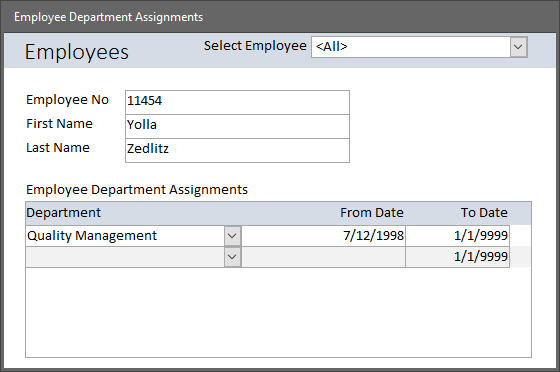
Main Form - Subform in Single View for Data Entry
After working with this Access Relational Database Application for a little while, the developer realized that it would be helpful to know when an employee leaves the organization. We want to add an Inactive Date to the Employee table.

However, not being experienced, the developer first tried to add the new field in the Front End, with this error.
Error Modifying Linked Table from Front End
A more experienced developer would immediately realize the problem and know how to solve it. Nonetheless, it does come up regularly, so I'm going to show you the next steps.

Open the Back End accdb with the tables. Open the Employee table in Design View.
Source Table in Back End accdb Open in Design View to Add Inactive Date
Now the appropriate field can be added and saved in the table.
InactiveDate Field Added in Source Table in Back End

Close the Back End accdb with the modified table in it. Reopen the Front End accdb. The new field should now be visible in the Linked Table. If it's not (and that's highly unlikely, of course), use the table relinker to refresh the link.
Refresh Links with Linked Table Manager
Now the new field can be included in the form's recordsource.
New InactiveDate Field Available for the Form's Recordsource
And a control for it can be added to the form.

New Field Available and Added to the Form.

Monday, December 16, 2019

Users Really DO Care About Your Interface

Last week I got a first-hand look at a user's reaction to a poorly designed interface. It made me smile.

I was in for a minor, routine medical procedure. The pre-op nurse was asking questions and entering my answers into the clinic's on-line medical records program. She noticed me staring at the screen and, perhaps thinking I was getting impatient (pardon the pun), felt she needed to apologize for how long it was taking. I assured her that I was mostly curious about the input process for professional reasons, having been a Relational Database Applicaton developer for many years. That prompted her to elaborate.

The system she was using required her to put in a couple of data points, then click a button or link to move to a different screen to add a few more data points, then move to a different screen for something else, and so on. She then explained that at her other job, they had a different system that allowed her to just scroll down as she entered data, without clicking and and waiting for a new screen to load. Much more efficient, at least in her opinion.

That told me a couple of things. First, she has joined the so-called Gig Economy and has, for better or worse, a variety of work environments to compare. Probably, she's not the only one doing that these days.

But more importantly, it told me that interface design is a big deal. I doubt that this particular nurse would give up a particular job because of it, but I would bet that if it came down to a choice between the two positions she holds, she is very much aware of, and concerned about, the usability of the tools available at the two.

Tuesday, December 10, 2019

Multi-Purpose Forms in an Access Relational Database Application

Microsoft Access is very flexible development tool. Seasoned developers know this, and take advantage of that flexibility in different ways. For example, different interface objects can be used for two or more purposes. A recent question at UtterAccess gave me an opportunity to create a small demo to illustrate how re-use of objects works.

In this demo Access Relational Database Application, I used one of the arguments for the DoCmd.OpenForm action to change the Data Mode for a single form.
Here's the full line of code, taken from two different procedures: 

    DoCmd.OpenForm FormName:="frmHousehold", View:=acNormal, DataMode:=acFormAdd

which runs from the Click Event of one Command Button. 


    DoCmd.OpenForm FormName:="frmHousehold", View:=acNormal, DataMode:=acFormEdit

which runs from the Click Event of the other Command Button. 

Two Command Buttons Open One Form in Two Different Data Modes


This is a very simple illustration of the re-use of objects. Instead of creating two different objects--add and edit forms in this case--to do two very similar tasks, we re-use the same object but vary the way it is used. Because adding records to a table, and editing records in that same table are almost identical tasks; it's obvious that we can simplify the Access Relational Database Application this way.

This is a simple example of a much broader set of design principles and practices. If you want to learn more, here's an excellent YouTube video by Phillip Steifel.


Tuesday, October 29, 2019

Pouring a Concrete Foundation After the Roof Goes On

Sometimes, when I'm cruising Access forums for questions I might be able to answer, I get the feeling that Access is simultaneously a really fantastic application-development tool and a really subtle trap for the unaware.

I'm talking about valid, proper, appropriate, NORMALIZED Relational Table Design, of course. Think, for example, of color options or size options for articles of clothing. Shirts come in Small, Medium, Large and Extra Large. Socks come in Blue, Black, Argyle or white. And so on. You've all seen "tables" in Excel worksheets, with one column for each option. In Excel they are the only option. You have to have different columns for each option.  And in the case of two options, you might even have combinations like "Small Blue", "Medium Blue", "Large Blue" and "Extra Large Blue", along with all of the other possible combinations. The inevitable result is multiple columns stretching out to the right as far as the eye can scroll.

Unfortunately, those columns make their way into Access tables as fields as well.

But in Access forums, the problem table design is seldom broached in the initial post, although I have seen a few direct questions about it.

The question often presents itself as a problem with designing an interface to handle multiple fields  Should you use a check box to select one of those options, or some other interface element that addresses each of those fields somehow?

Sometimes the question asks for help in constraining data when two or more fields are available, only one of which should be filled and the others left blank . If you pick a Large size shirt, you can't also have it be Small. Black socks can't also be White socks.

Sometimes it shows up as a problem getting results out of a query with that kind of inappropriate table design. How do I write a query to get the Shirt Size we sell most often?

There are many variations, but they all boil down to lack of Normalization, and I compare that to trying to go back and putting in a foundation under a house when you've already put up walls and a roof. It's possible, but it's not going to be easy and it all might collapse on you.

If you plan to create an Access Relational Database Application, and if you don't know what I am talking about here, I think you owe it to yourself to invest a few hours in your peace of mind by learning as much as you can about the Rules of Normalization BEFORE you try to put up walls and a a roof.  The nicest roof in the world won't keep the rain out if the building collapses because it lacks a foundation.

The reason this is a problem is that, as I said at the beginning, Access is really open and easy to get started. It's tempting to import a working spreadsheet and throw an interface on. And, unfortunately, that can be done without understanding what the consequences will be.

Be safe, stay dry. Normalize first.

Monday, August 5, 2019

Why Choose Min() and Max() Over First() and Last() ?

Humans are much better than computers at resolving ambiguity. We're trained from birth to do that.

People can look at a series, or list, of values and decide which one is "the first" and which one is "the last" by referencing both the values themselves and the context in which the question was asked.

Perhaps such a  question might be "Of this list of people and their birthdates, which birthdate came first?"

We don't need to have the birthdays sorted in date order to answer that question because our minds are trained to recognize the context as well as the values. For example, if the list of birthdates is presented to us with the names of the people sorted alphabetically, we don't go to the item at the top of the list and pick it because know that's not the right context; we scan the entire list looking for the earliest one relative to other birthdates.

That kind of disambiguation is a skill computers are still learning, and one which Relational Database Applications are not set up to handle directly. We still need to make explicit the Sort Order the computer must use in order to find "the first".

Put it a different way.

If the question is phrased as it is above, the sort must be "earliest" birthdate to "most recent" birthdate so that the "earliest" is also "first" on the resulting set of records.

If the question is phrased differently, the sort must be different. "Of this list of people and their birthdates, which one is the birthdate of the  first person on the list?"

To answer that question, of course, we have to know which sort order to apply to the list to get the result expected by the questioner. Do they want the "first" person alphabetically? Alphabetically by FirstName? Alphabetically by LastName? Or does "first" refer to some other criteria like "tallest", "top producer", etc?

When the question is asked explicitly, it's easy to see why and how the answer will be different. We're asking about birthdates in different contexts, and that means  first doesn't always return the same answer.

Because of that ambiguity, many seasoned Access developers prefer to use Min() and Max() instead of First() and Last(). Min() and Max() are absolutes within the values themselves, regardless of context. The Minimum birthdate is the same regardless of any sort applied any of the other fields in that query. The same is true for Maximum birthdate. Access doesn't need to disambiguate the contextual reference for the question, "What is the minimum (or earliest) birthdate in this list of people and their birthdates?"

While it is possible to get accurate results when using First() and Last(), doing so depends on knowing both the values and the context in which the comparison is being made.

If you want to continue to use First() and Last() instead of Min() and Max(), continue to do so. Just keep in mind the possibility of potential subtle errors and make sure you use the appropriate ORDER BY clause.

First and Last refer to position in a list. Min and Max refer to values in one field.